Talisman
Start Staking
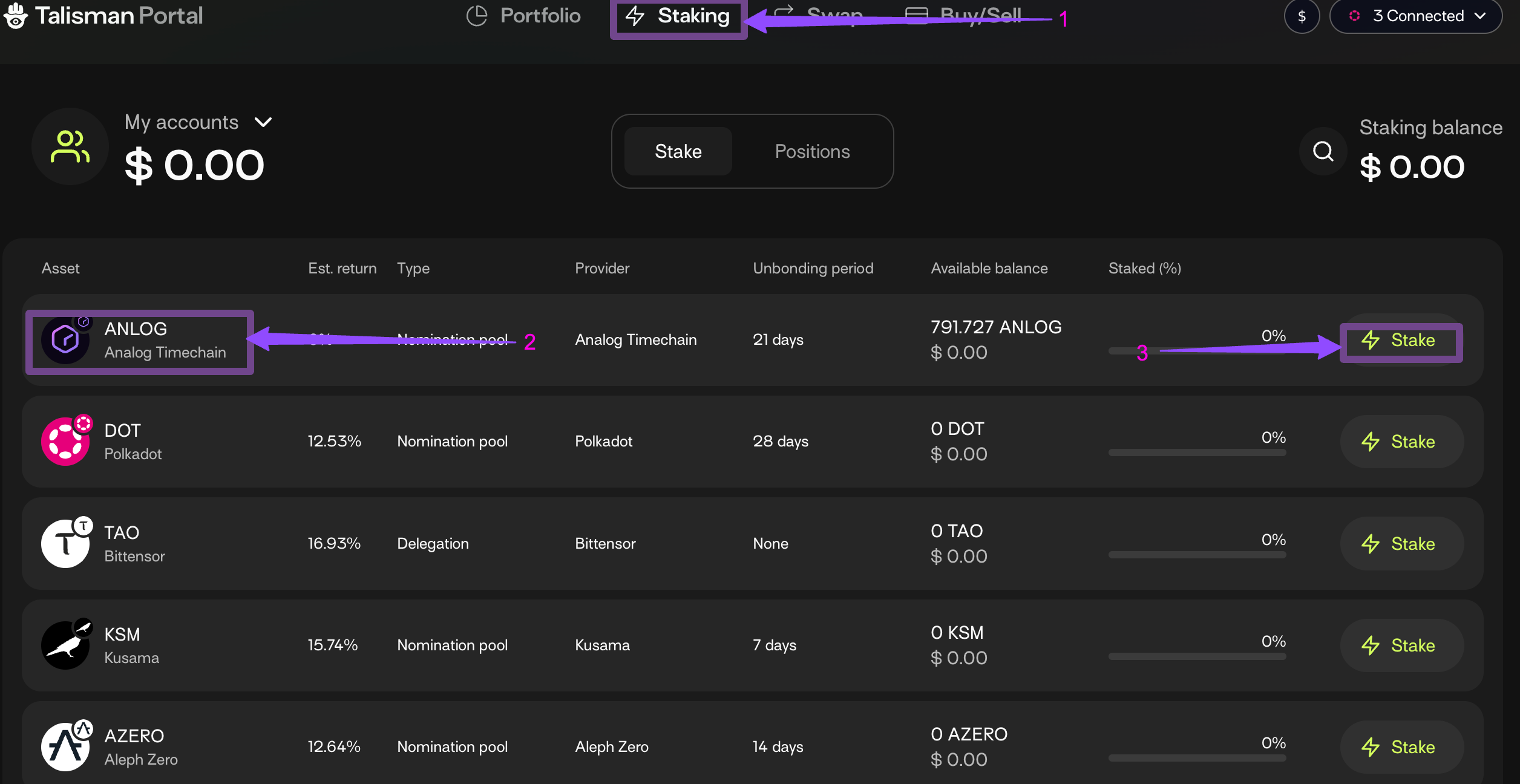
- Launch your Talisman wallet extension, click the “Staking” tab, and select the account you want to stake with. Or, you can open the Talisman Portal and click the “Staking” tab on the top-center menu.
To use an existing Substrate-based account (such as one from Polkadot.js Extension) in Talisman, you can import it. Refer to this documentation for more information.
- On the following dashboard, you can select the native asset you’d like to stake, which, in this case, is $ANLOG.
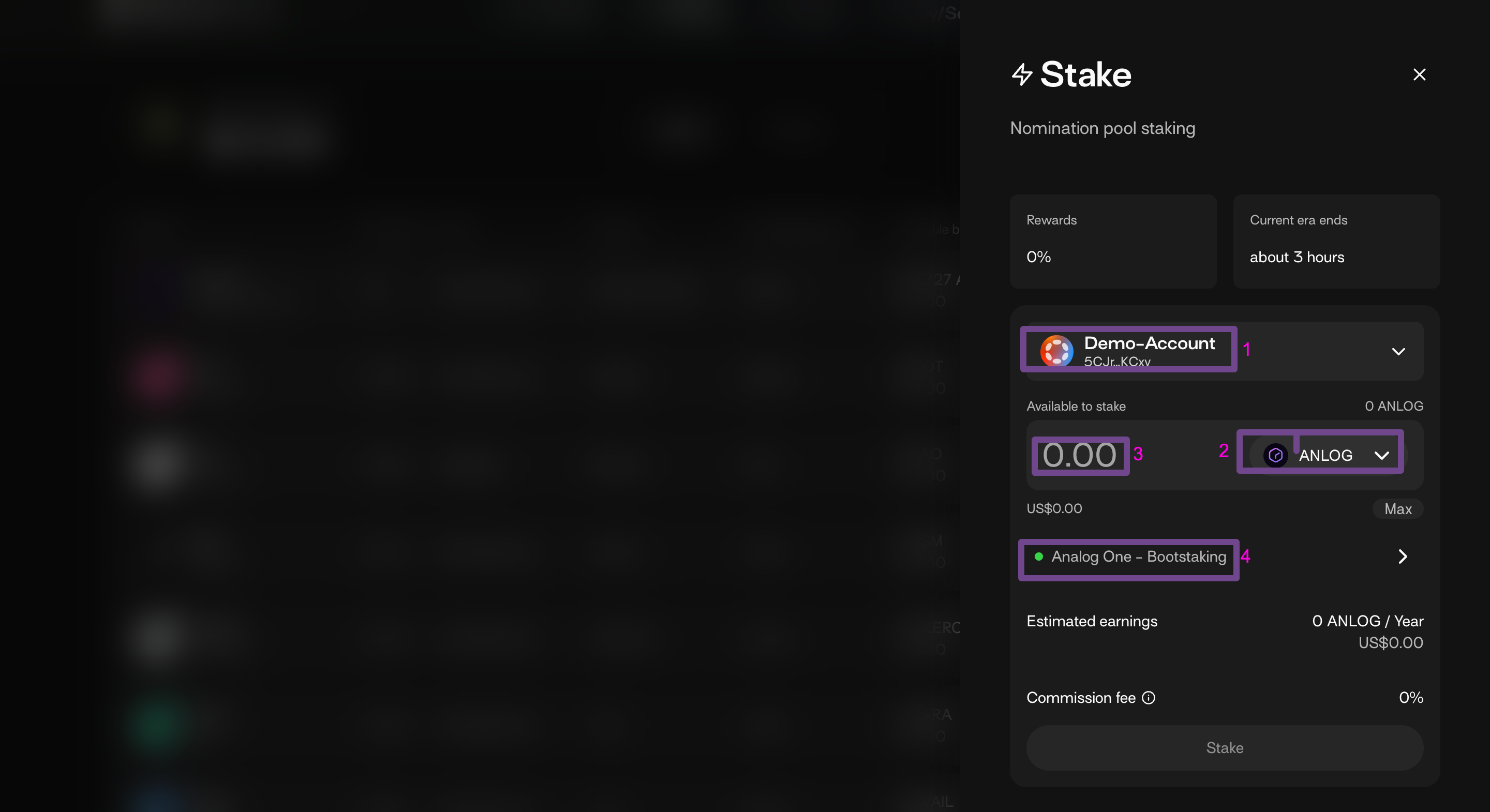
- After selecting $ANLOG, you'll be taken to a staking interface where you can choose the account (1), asset (2), token amount to stake (3), and Nomination Pool (4). Upon making your selection, please click the “Stake” button as shown here:
- Click “Approve” on the pop-up to confirm your stake.
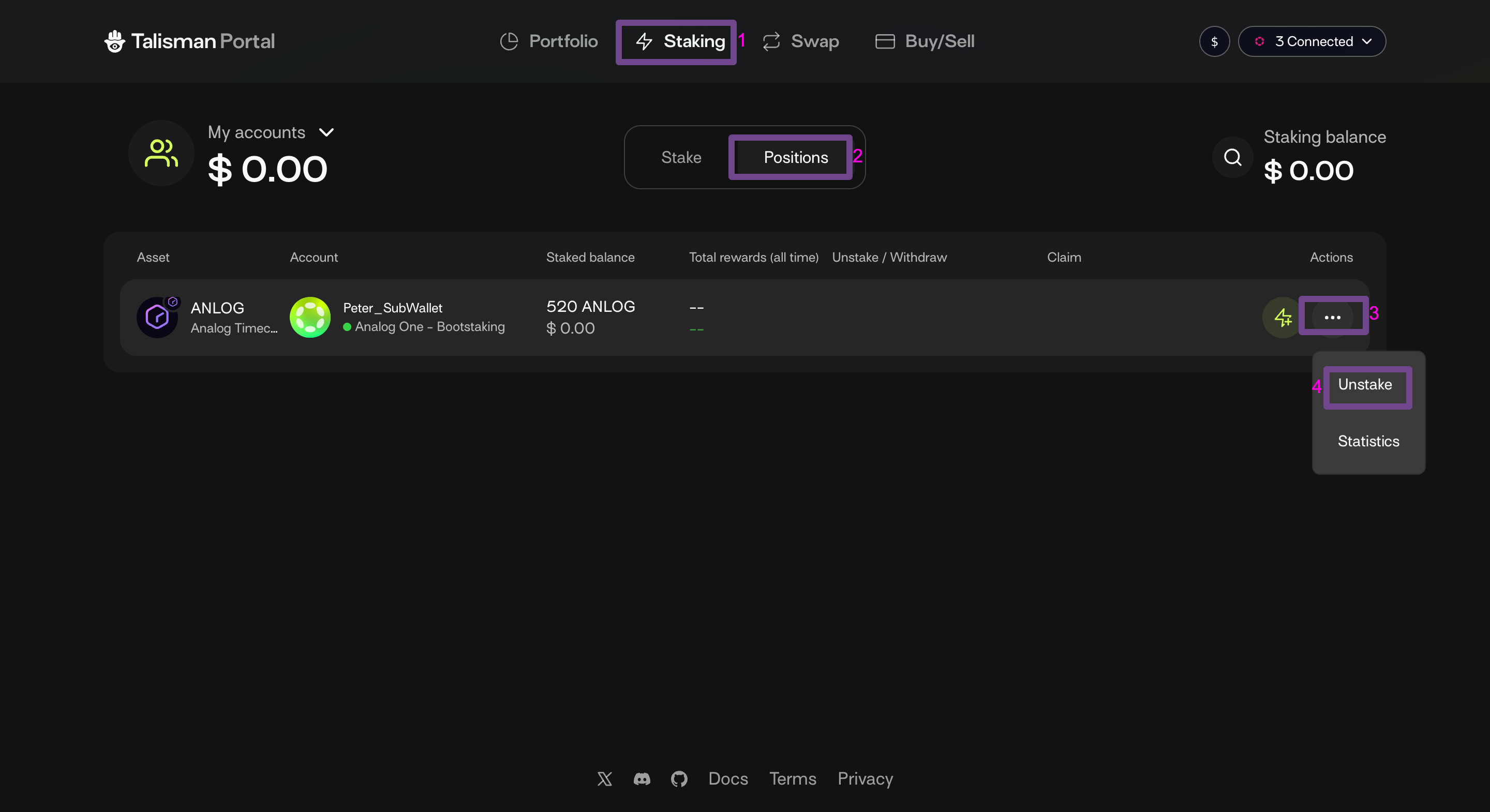
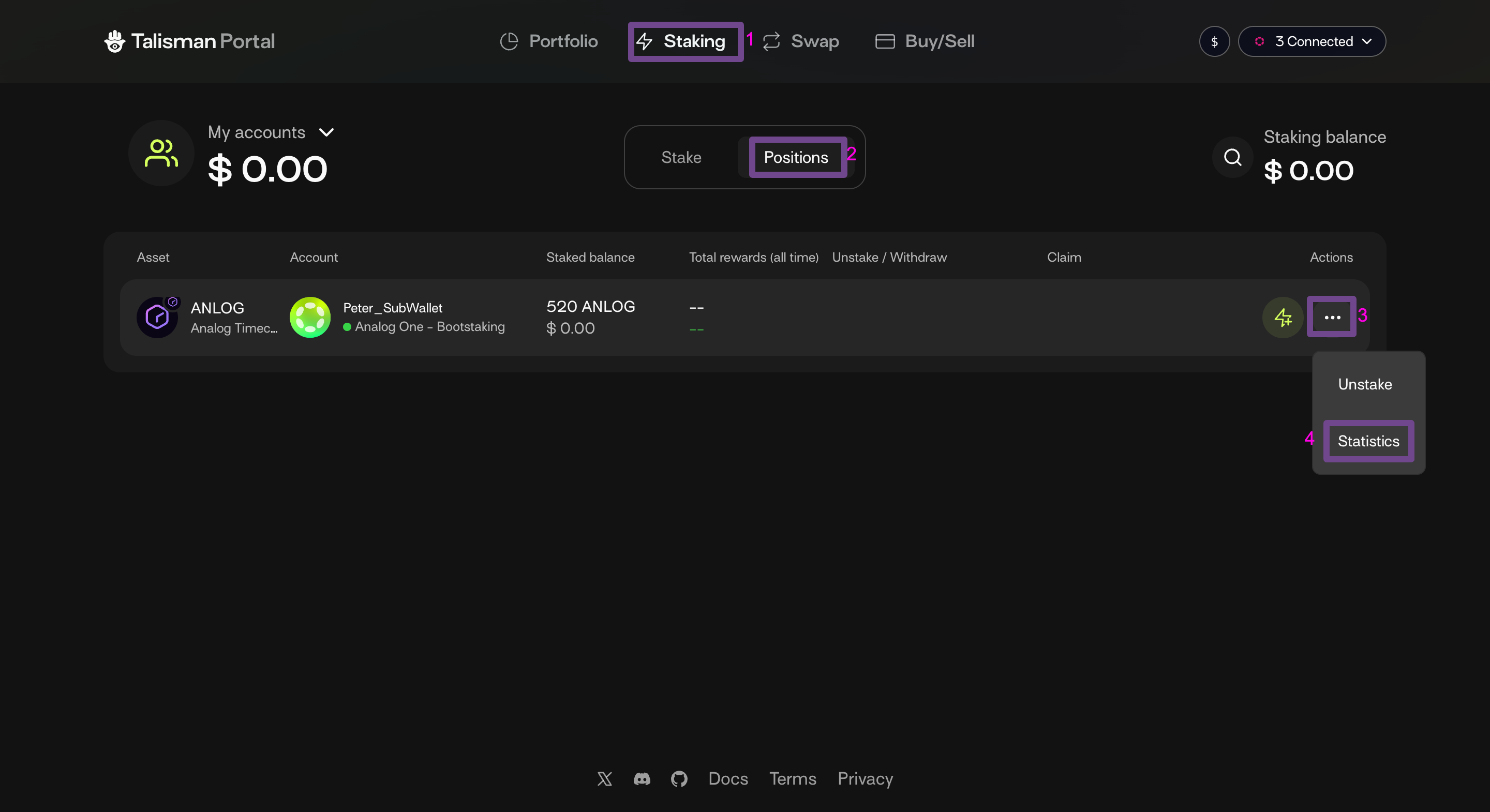
- Congratulations! You are now a member of a Nomination Pool and have begun staking. You can now track the status of your staking in the Talisman Portal by navigating to “Positions” on the Staking Dashboard. Here, you can review details such as your nomination pools, balance, recent rewards, and payouts. You’ll also be able to add more stake, unstake, view stats, and modify claim settings. See Positions Settings for more details.
Positions Settings
Add More Stake
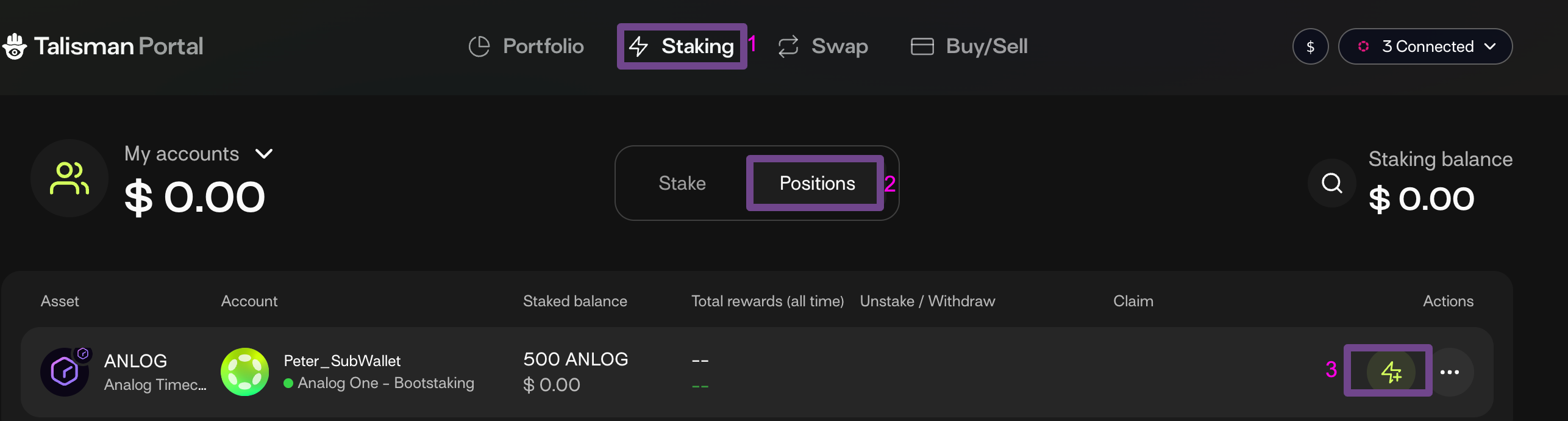
- Launch Talisman Portal and navigate to “Staking”->” Positions.”
- Add assets to your open stake by clicking “Increase Stake” button as shown here:
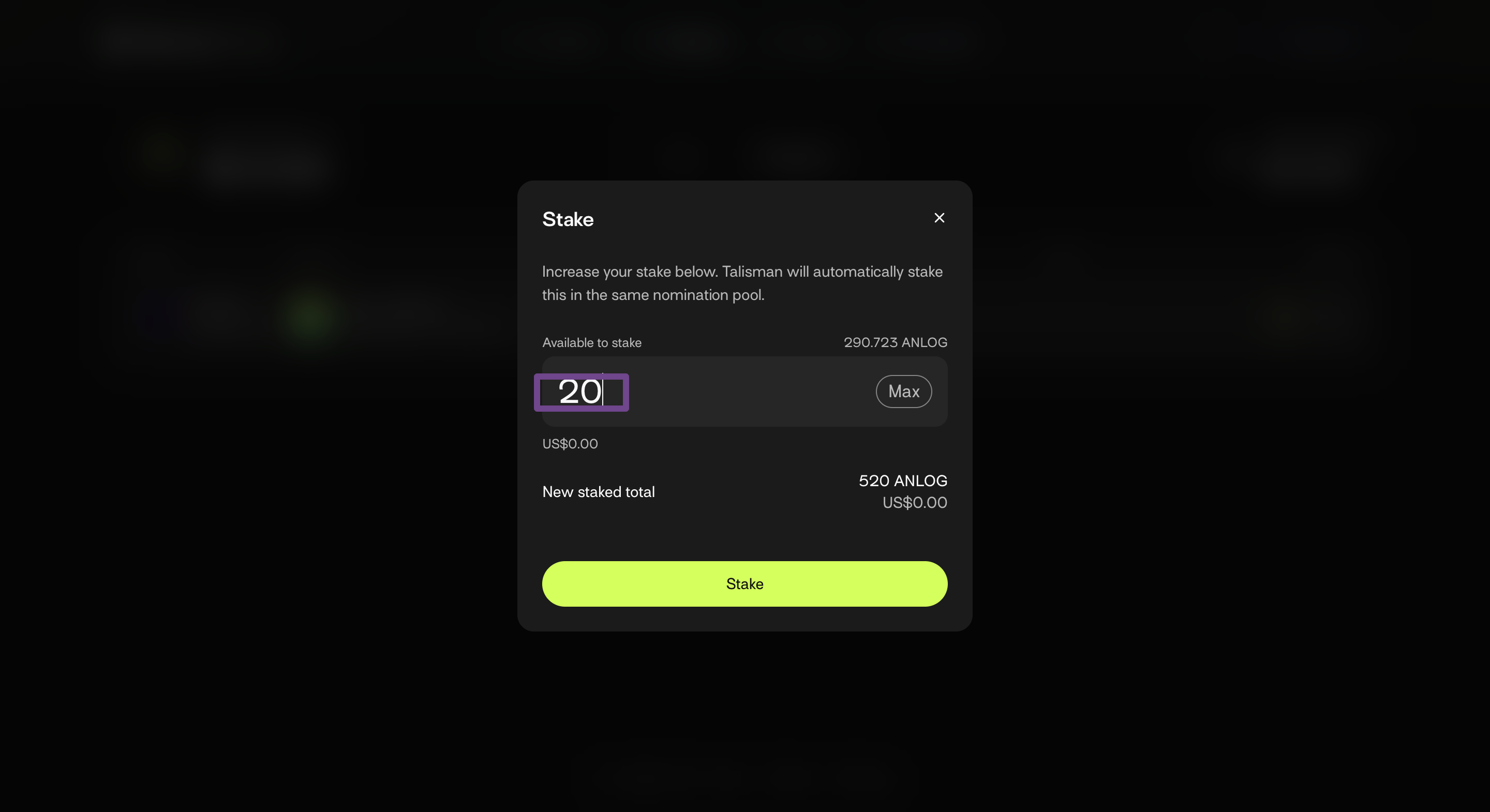
- Enter the amount of ANLOG you want to increase your stake with and click “Stake.”
- Click “Approve” on the pop-up to confirm your transaction.